Showing posts with label PC Tricks. Show all posts

HIDE RECENTLY OPENED FILES AND PROGRAMS FROM START MENU

| |
0 comments
Windows save list of lately started out information and show them in start list. Its very convinient to find information. But if you want to some comfort, if you don;t want others to see which information and programs you started out than you can cover recent information.
toady I m gonna to show you How to HIDE RECENTLY OPENED FILES AND PROGRAMS FROM START MENU.

HIDE RECENTLY OPENED FILES AND PROGRAMS FROM START MENU


Follow My Steps to

HIDE RECENTLY OPENED FILES AND PROGRAMS FROM START MENU


1). Right click on taskbar and click on Properties.
2:) See Bellow Picture To get more option to "HIDE RECENTLY OPENED FILES AND PROGRAMS FROM START MENU".
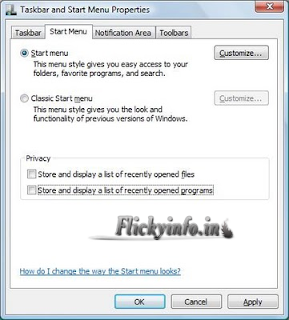
HIDE RECENTLY OPENED FILES AND PROGRAMS FROM START MENU

3). Press ok.

Its done.
Click on Start list and examine latest products and latest applications, they must not be in begin list. Start list will look like this determine.


I Hope You Enjoyed Please Share This Post.
"HIDE RECENTLY OPENED FILES AND PROGRAMS FROM START MENU"
Have A nice Day.
Read More

How to Increase Internet Speed

| |
0 comments
Toady i am posting about How to Increase internet speed.You can Increase you internet speed upto 20% faster.Microsoft reserves 20% of your available bandwidth for their own purposes like Windows Updates and Enchasing your PC,etc.

How to Increase Internet Speed


You can get it back you 20% speed of internet by simple methot.
Follow bellow steps to get back it.

Click Start then Run and type “gpedit.msc” without quotes. This will open the editor.


Then go to:

–> Local Computer
–> Computer Configuration
–> Administrative Templates
–> Network
–> QOS Packet Scheduler
–> Limit Reservable Bandwidth.
Double click on Limit Reservable bandwidth.
It will say it is not configured, but the truth is under the ‘Explain’ tab i.e.” By default, the Packet Scheduler limits the system to 20 % of the bandwidth of a connection, but you can use this setting to override the default.”
So the trick is to ENABLE Reservable bandwidth, then set it to "0". This will allow the system to reserve nothing, rather than the default 20%.
It works on Win XP, Win 7 and as well as Win 2000.


I Hope You Enjoyed !
Please Share This Post
"How to Increase Internet Speed"
Read More

How to Remove Shortcut Arrow From Desktop Icons In Windows

| |
0 comments
Hello Friends.Today i am gona to show you How to Remove Shortcut Arrow From Desktop Icons In Windows.This is a simple Tricks which was done easily not hard work in this were be applied.
Many Windows Users Are Really Inquisitive About Pointer Showing With Windows Symbols On Pc. There Are One Computer registry Technique To Eliminate This Type Of Quick way Arrows. But This Technique Will Get Many Problems To Windows 7 Like Eliminate Pin This Program To Taskbar From Windows Perspective List, etc… But Here Are A Application Which Let You Do This Without Losing Anything And Face Any Problem.
So, Obtain The Application From Below Link.


Compatible With Both 32 Bit And 64 Bit Versions Of Windows 7 And
Also Works With Windows Vista 64 Bit And Not Sure About 32 Bit.
And I Don’t Know About Windows XP.

After Download The Program Right-Click On It And Click On Run As A Administrator. And Click On Hide/Remove Arrow And You Are Done. All Arrows From Icons On Desktop Will Be Gone.


I Hope You all Enjoyed the Post
How to Remove Shortcut Arrow From Desktop Icons In Windows
Read More

Make a Folder Without Name

| |
0 comments
Hey Friends i am back with a new coll tricks Make a Folder without name.Previously i posted Improve your blog SEO by firefox addons this post is only for webmaster's, but now i posting a post about Make a Folder without name this post is for all my blog readers.You may have seen different types of folder like heart shape name or other signs,But you erver tried to give a folder a blank name or invisible name ?.I think no,se follow the bellow steps to make folder without name.

Make a Folder Without Name

Steps To Make Folder Withou Name

Step 1: Click the right mouse button on a new folder or any other folder which you want to make without name,then click on rename.

Make a Folder Without Name


Step 2: Now Keep holding "Alt" button or key in your keyboard and type "0160"

Now Simply click anywhere outside the folder,than see the magic.


I Hope You Enjoyed...!
Please take a minute to share this post
"Make a Folder Without Name"
Read More

Increase Your Internet Speed With a Simple Trick

| |
0 comments
Increase Your Internet Speed With a Simple TrickA Slowly Web Network really expenditures time and creates you experience frustrating. Many individuals ask me the tips on how to Improve their Web Rate. However, it's possible to do so somewhat and Create your Web much better then it was in the last. However, There are some changes and applications that will help you to Improve your Web Rate.

(1) Increase Your Internet Speed Upto 20%

This is the first method to rate up your web. This method might be known to most of the individuals. But still I want to reveal this with you!! However, this method help you to improve your Internet Speed by 20%. Just adhere to the techniques below: 

Go to start.
Go to run.
Type gpedit.msc and hit enter.
Expand Administrative Templates.
Then Network.
Then QoS Packet Scheduler.
A new list will appear. Click on Limit Reservable Bandwidth.
Just Disable it.
Click on Apply.
Hit OK. You're done!!
Now just restart your Computer. You will experience a change in your Speed.

(2) Free Accelerators to Speed up your Internet:

In this second method, I am providing Internet Accelerators to Speed up your Internet. However, these are some small utilities that will tweak and optimize your internet settings for you, and thereby, Speeding up your Internet. 

Ashampoo Internet Accelerator

This utility comes with an awesome tool that will optimize and tweak your internet settings within a single click. It also has a feature to test your Connection speed.


 You can also try other accelerators like:


(3) Use TCP Optimizer to Boost Speed

TCP Optimizer is a Small device allowing you to boost and track up your Internet Rate.


(4) Ways to Boost Speed in Firefox

You can use Speedyfox to improve your Web Rate.
You can perspective our one of our formerly published post for this.


And you can even Develop your youtube.com efficiency in Chrome and all other surfers.You can perspective our one of our formerly published post for this.


(5) Some tips from my side:

  • Use IDM to boost your Downloading Speed.
  • Try Downloading torrents using IDM.
  • Use a Good Anti-virus in your Computer.
  • Remove  unwanted add-ons,softwares,unwanted files from your computer.
  • Update your drivers periodically.
  • Keep a good maintenance of your Computer.

I strongly recommend you to upgrade your Internet Plan experience a quicker and more constant Speed..

 
I Hope You Enjoyed.. Take a minute to share this post.
Read More

Extract Text from any Image Online

| |
2 comments
Hello Associates...I trust you all are excellent. It may occur many periods that you come across such pictures that contains awesome/useful  Quotes/content and you may need them by means of textual information but you cannot form them or create them as they  might be too extended. In such a situation, there is a on the internet device which comes to save and will help you to do this job for you quickly.


Free OCR is an on the internet device which will help you to draw out the textual information from any picture quickly. It will do this work in a few periods and absolutely no price.
The procedure is very simple:-


Extract Text from any Image Online


(1) You need to go to the website.
(2) Publish your textual information picture.
(3) Get into the captcha.
(4) Press on Deliver Submit.
(5) Delay for few periods.
(6) Yipee!! The textual information from the picture is before side of you!!
(7) Now You can information and use your preferred text!!

Now appreciate using this Free OCR on the internet device to draw out textual information from any image!!!

SO, I trust my post was useful to you!!! Please do feedback on this post!! Keep Visiting!!!

Read More
Powered by Blogger.